

In this article we are going to show you how to log on to our client area where it all starts. This is the launch pad for everything at ODITech. Lets get started:
- Open a web browser and go to https://my.oditech.com
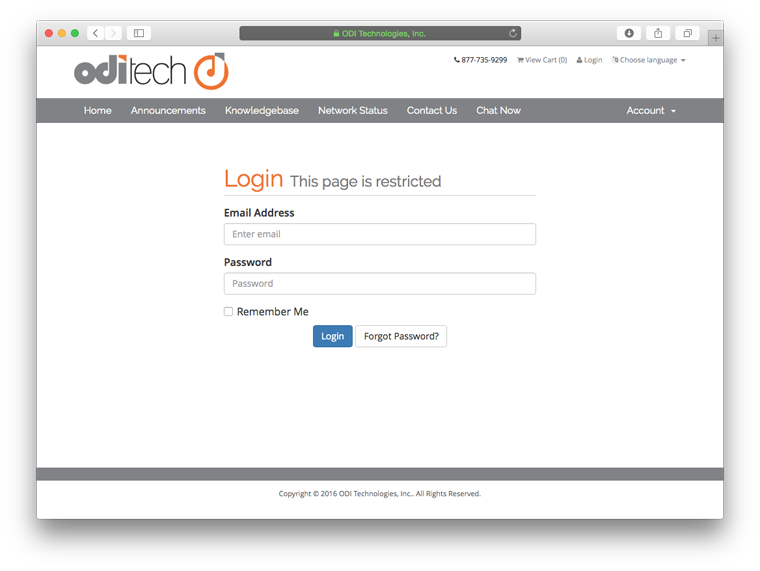
- Enter your email address and password that you used to sign up with us.
- You are now presented with an overview of your account with many options to choose from including opening a support ticket to updating your details.
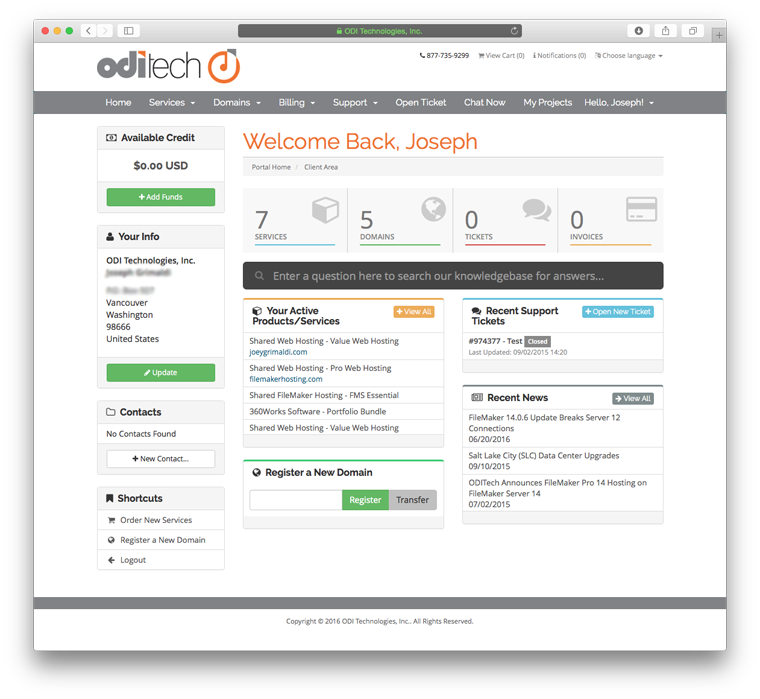
- Now lets check out your services by clicking the "Services" menu item and selecting "My Services"
- This screen shows you all of your products that you have with us. You can find details on any given product by clicking the "View Details" button on that product line.
- In the details screen depending on the product you can view username and passwords for a product, view usage and limits, and access control panels.
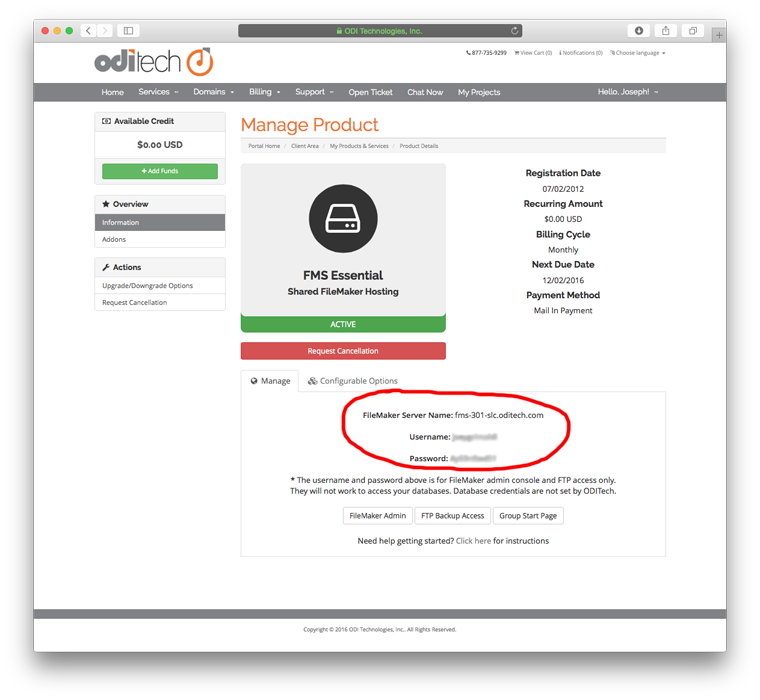
- Below is an example of a FileMaker hosting account product screen. Notice the username and password along with a button to access the FileMaker Admin Console. This admin console is used to start, stop, and download your databases. After clicking the "FileMaker Admin" button in our client area you will be taken to the FileMaker Server Login page.
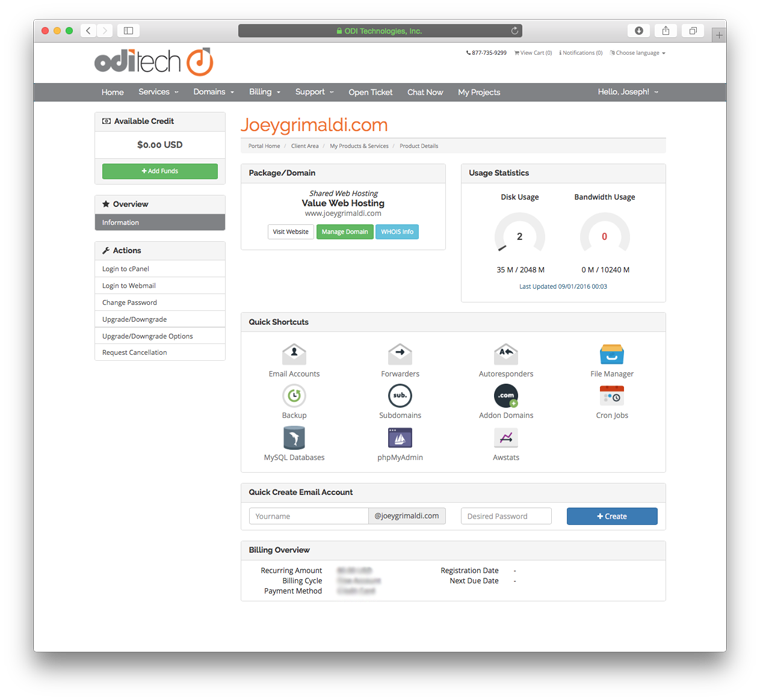
- Below is an example of a web hosting account product screen. The username and password are shown under the "Change Password" tab. Notice the usage statistics and button linking to the web hosting control panel.
- Open a web browser and go to https://my.oditech.com
Great Tips!
- If you have registered a domain name you can manage this under the "Domains" menu then "My Domains". You can also renew and register new domain names as well.
- Under the "Billing" menu you can view all of your invoices by selecting "My Invoices" as well as update your billing credit card information by selecting "Manage Credit Card"
- Under the "Support" menu you can view open tickets, search our knowledge base, access downloadable files (white papers, how-tos, etc.), and check the network status of our servers.
- One little hidden gem is the ability to view all emails ever sent to you from our system including welcome letters and support tickets. Click on your name in the upper right corner and select "Emails Sent"
- We have only touched on a few of the many functions of our customer portal area. Feel free to explore and if you have any questions please contact us at support@oditech.com or simply click the "Open Ticket" option in the menu.
