

Open your database using the group start page.
Now the fun begins!
- Login to the customer portal area and navigate to the details page of your product. If you don't know how to do this please see step 1.
- Open the Group Start Page by clicking the button labeled "Group Start Page".
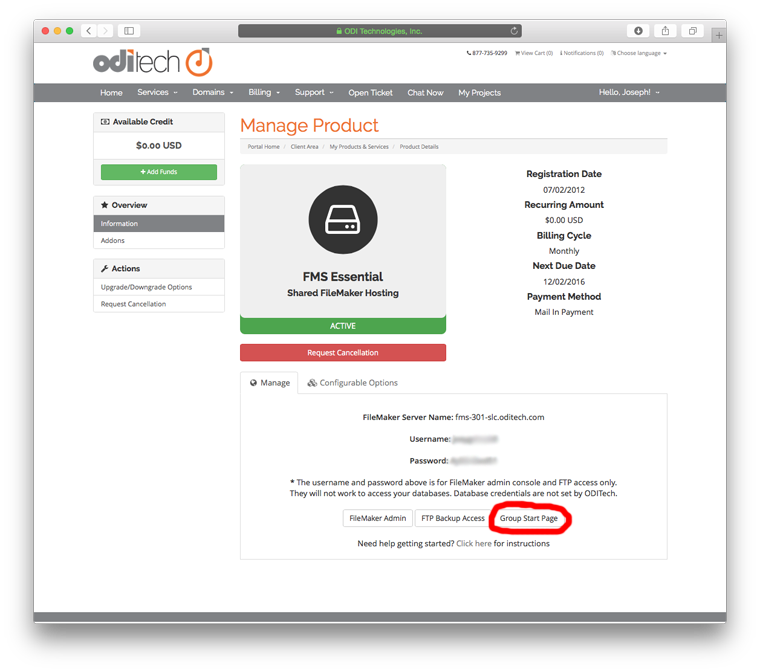
- A page should open showing you your available database(s) to open. Depending on the device you are connecting with and the access allowed in the security settings of the database you will see several buttons.

- To open your database with FileMaker Pro on the desktop select the "Pro" button.
- To open your database in Instant Web Publishing select the "IWP" button.
- If you are on an iPad or iPhone and have FileMaker Go installed you will see the "Go" button.
Open your database with the traditional "Open Remote"
Lets start by opening FileMaker Pro on your computer.
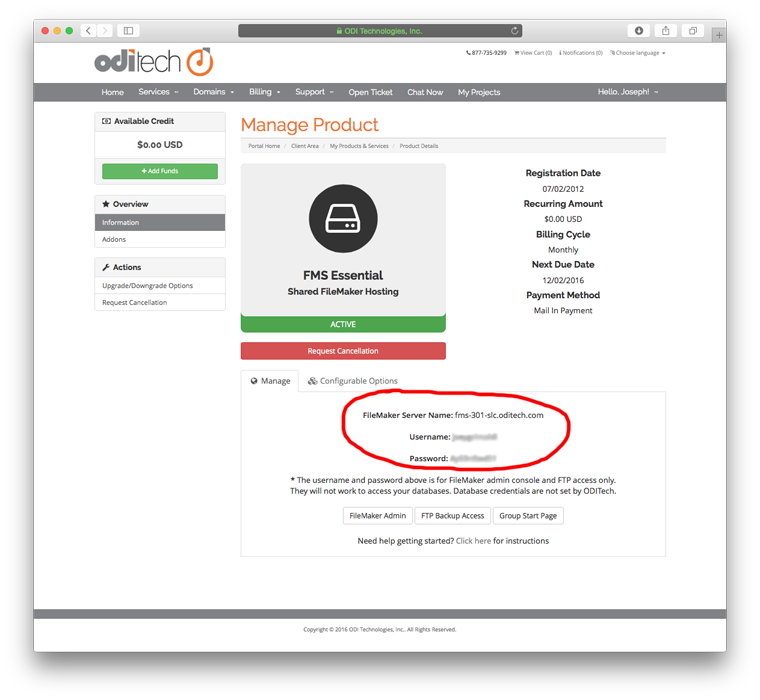
- In order to access your database on our servers we need to tell FileMaker Pro where this database lives. You can find out the name of our FileMaker Server that your database is hosted on in your welcome email or in the product detail section of our client portal area. (see step 1)
- In FileMaker Pro click the "File" menu and select "Open Remote"
- In the open remote window select "Favorite Hosts" from the "View" pop-up list then click the "Add" button.

- Enter the name of the FileMaker Server you got from the welcome email or customer portal area (i.e. fms12.oditech.com) into both "Host's Internet Address" and "Favorite Host's Name" boxes. Leave "Show all available files for this host" selected and click the "Save" button.
- After clicking save you should be presented with a window asking for your account name and password. Enter the account name and password that you created in the FileMaker security settings for your database.
- You will now be presented with a list of databases that your account name and password has access to. Select your database and click the "Open" button.
- You will be asked again for your account name and password. This will authenticate you to this specific database.
- You are now logged in remotely!
Don't forget that you still have a copy of your database on your computer. You should store this file as a backup and only login to the hosted file from now on otherwise you could have different data in two places. Also, check out our many other knowledge base articles for more instructions including starting, stopping, and downloading backups of your database.
Thanks for being a customer!
